Do you know that you can use your "Notepad as a simple digital diary" or
a personal Log-Book to keep record of your daily work instead of using
boring pen and book ? Well, if you dont know then follow the below
mentioned steps to make one for yourself !
* First open up the 'Notepad'
* Then Type in .LOG (in capital letters) and press enter.
* Save it with any name and close it.
* Open the file again.
When you open the file again you will see the current date and time being inserted automatically after the .LOG line. This will happen automatically every time you reopen the the notepad file.
Wednesday, August 8, 2012


Saturday, July 21, 2012
Pros And Cons Of Linux

What is Linux:
Linux is an operating system, like Microsoft Windows, MacOS, or Unix. It was created as a hobby by Linus Torvalds, a student at the University of Helsinki in Finland. What most people don’t know about Linux is that its source code is available to anyone. The Linux source code is called the kernel and it is the base of the Linux operating system. Because the source code or kernel is free, it has enabled hundreds of companies and individuals to release their own operating systems based on the Linux system. These operating systems or formats are often referred to as Linux distributions.
Each distribution has its own set of features and functionality that makes it unique. While Linux is generally considered free-ware and people associate that with no cost, that is not always the case. Some distributions are available for download for free and others are available on CD or floppy disk and have a small charge associated with them. You can find a list of distributions at http://www.linux.org/ and a list of applications at http://www.Linux.org/apps/
Because if the adaptability of Linux it has been embraced and supported by a number of operating systems and software programs. For example, IBM, Hewlett-Packard and other giants of the computing world have embraced Linux and support its ongoing development and openoffice.org and Mozilla run on Linux. US retailing giant Wal-Mart began selling Linux systems back in 2002 - if Wal-Mart isn't mainstream, nothing is.
What are the benefits of Linux?
Many people fear that Linux is going to be difficult to work with or that it will be difficult to find software that will run on Linux however Linux is a very standard operating system, compatible with just about any software you need.
Beyond being a standard operating system, Linux supports open source software which makes it a very economical operating system, especially if you program your own software. It offers many free or low cost applications which include, basic desktop applications like web browsers, email programs, word processing programs, spreadsheets, graphics programs, and file managers.
Linux can easily operate as a central server for your business. With Linux, you can serve your own web pages up for public consumption and handle your own email.
Linux doesnt require top of the line hardware though many recommend you have at least 256 MB of RAM and at least 4 GB of space in your hard drive.
Linux is considered to be extremely stable and doesnt need to be rebooted periodically to maintain performance levels. Think about the last time you sat at your computer and it froze. Not fun, right? That doest happen with Linux if it is configured correctly.
Linux isn’t going to be replaced anytime soon and when bugs are found in the system, a developer are quickly on the job and often times a solution is offered within a matter of hours, not months or years like many other operating systems.
Linux is also fast and can handle a number of tasks at the same time.
Linux also claims to be one of the most secure operating systems isn’t plagued with the viruses that other operating systems generally deal with.
Linux is free from having to upgrade it or deal with proprietary file formats and licensing fees. You dont have to register it due to its open source format.
You can have both Linux and windows on your computer. (You'll have to partition them on your hard drive and you can only boot them one at a time.)
Drawbacks of Linux
There is no 1800 customer service number to call. However, most distributions offer a support number or email to call if you find a bug. They also generally come with installation instructions.
You cannot run applications for MS windows on Linux. However, there are Linux emulators or applications that enable you to run some windows applications on your Linux system. They operate like a translator. Some of these ‘translation or emulator’ products are free and others are available for a price.
Linux is not able to run some advanced financial applications or reproduce some proprietary multimedia formats.
Tips and Advice:
Choose a popular distribution has a large developer community. A large developer community means that you'll find the programs that you need easily and you will be able to install them with the same ease. The more well-known distributions have prepared programs in ‘packages’ that are easy to install. On top of this, there are tools designed especially for a particular distribution to manage these packages to make sure that programs run correctly right away. The website Distrowatch.com maintains a comprehensive list of the most popular distributions.
Get the latest version of your chosen distribution. The newer the Linux distribution version, the better the hardware support. The number of glitches you'll get in the installation process decreases with the newness of the version of Linux you choose.
Consider paying for your Linux distribution. It is true that you can get a full-featured Linux operating system free of charge by downloading it from any number of sources. This is an excellent alternative to an operating system like Windows, which either comes pre-loaded with a newly purchased computer (which gets figured into the cost), is bought separately or copied . In most people experience, the popular Linux distributions are easy to install. However, if you do run into some glitch (normally hardware related), you may have a frustrating experience. Although there are a number of excellent Linux support forums out there, personalized advice on your particular problem may be hard to find.
Use an appropriate computer. if you want to use Linux to do the same things that you would with Windows XP or Mac OS X, then you'll need the newest computer you can get your hands on. Avoiding video cards and new, exotic hardware will also work in your favor because you wont have to deal with hardware support which may be inferior to hardware support from other operating systems.
Use Windows Key as Start Menu in Linux
Usually we have the habit of ' using Windows key for popping up the start panel, in Window felt clunked whenever I hitTried and tested on Ubuntu :) the Windows key (another windows habit of bringing Start Menu) to bring the Ubuntu Panel at the top of screen as nothing happened at that time.
Ubuntu Panel is a dropdown menu which is used to launch applications, which is quite similar to the way Windows has the start menu. However If you are a windows user new to Ubuntu, you might want to have the windows key launch the applications menu. Thankfully this is an easy thing to do in Ubuntu.
Go to the System \ Preferenc \Keyborad Shortcuts menu item:

Scroll down till you see the “Show the panel menu” item,click in the Shortcut column, and when it changes to “New accelerator…”, hit the Windows Key. Close all windows and you’re done!
Now whenever you will hit the windows key (intentionally/unintentionally/for God’s sake :P) , the application menu will pop up and you can navigate into it using the arrow keys.
Basic For Windows
Ubuntu Panel is a dropdown menu which is used to launch applications, which is quite similar to the way Windows has the start menu. However If you are a windows user new to Ubuntu, you might want to have the windows key launch the applications menu. Thankfully this is an easy thing to do in Ubuntu.
Go to the System \ Preferenc \Keyborad Shortcuts menu item:

Scroll down till you see the “Show the panel menu” item,click in the Shortcut column, and when it changes to “New accelerator…”, hit the Windows Key. Close all windows and you’re done!
Now whenever you will hit the windows key (intentionally/unintentionally/for God’s sake :P) , the application menu will pop up and you can navigate into it using the arrow keys.
Basic For Windows
Tuesday, July 10, 2012
Auto Delete Temporary Folder

Follow the steps :
+Go to run and type gpedit.msc
+Navigate through -> Computer Configuration/Administrative Templates/WindowsComponents/Terminal Services/Temporary Folder
+Then right click "Do Not Delete 'Temp Folder' Upon Exit" and go to properties and hit disable.
Now from next time when Windows puts a temp file in that folder it will be 'automatically deleted' when it is created
Sunday, July 8, 2012
Disable Power Management For Windows Vista
 If you are using a desktop computer, chances are that you don’t want the computer to go to sleep automatically. This is even more the case if you are running Vista in a virtual machine for testing purposes.
Disabling power in management is simple and easy. First go to the start menu and click on the Control Panel.
Click on the System and Maintenance link:
Then click on the Power Options link:
Then select High Performance:
This will disable the automatic sleep mode, but will still turn off the display. You can click on Change Plan Settings to disable that as well if you want.
Friday, July 6, 2012

Thursday, July 5, 2012
Hide your computer in the Network
 (Hide computer in the Network)
"I want to hide my computer in the network neighborhood, also I don't want them to discover me...Please help me. Thanks." This is a message from an anonymous computer user.
Network Places in Windows XP na Network Explorer in Windows Vista
I will give two solutions in your requested topic. I hope you'll always be a fan of this site and please support us.
Using my Software WinBubble: Go to specific Tab > Tweaking Toolbox > Hide your Computer
That's it! This is great, if you don't want to memorize lot's of commands...
Learn How to do it Manually:
First, go to Start Menu->Run window. type: "cmd". In the command prompt enter the following commands:
Net config server /hidden:yes
This command will hide you from the Network neighborhood but your shared folders can still be access.
Note: in Windows Vista, you need to open the command Prompt as Administrator: Start Menu > type "cmd" > CTRL+Shift+Enter and hit Continue.
or else you’ll get this message:
System error 5 has occurred.
Access is denied.
So how about my IP address? what if they have an ip-scanner, still they can find me?
They can find you by using an ipscanner. The solution for this problem is by using a Firewall. Upgrade to Windows XP Service Pack 2, there is a free inbound protection firewall. For Windows Vista users, there is an inbound and outbound firewall protection by default.
To check if your computer is hidden in the network neighborhood type this in the command prompt
Net config server
Server Name \\MyPc
Server Comment
Software version Windows Vista (TM) Ultimate
Server is active on
NetbiosSmb (MyPC)
NetBT_Tcpip_{4365E532-AF25-4C8E-C31E-5D3BG50F7043} (MyPC)
Server hidden Yes
Maximum Logged On Users 10
Maximum open files per session 16384
Idle session time (min) 15
The command completed successfully.
How to Show your Computer Again inside the Network Neighborhood
Net config server /hidden:no
Wednesday, June 27, 2012
Resize Partitions With Vista Disk Manager
Windows Vista Resize Partitions With Vista Hard Disk Manager
The release of Windows Vista will bring a number of welcome enhancements to the built-in set of system tools, including the ability to dynamically resize partitions. Prior to Windows Vista, the ability to shrink and extend disk volumes has only been available through third party tools such as Partition Magic.
Although not as full featured as some third party partition management applications, Windows Disk Management console will allow users to shrink, extend, create, and format partitions. The new resizing features will allow users to shrink a single partition with unused space, and then create a new partition in the resulting free space, as well as extending a current partition if there is available free space after it.
To access Disk Management, right click on My Computer, and select Manage from the context menu – this will open the Computer Management console (alternatively, Disk Management may be accessed from Control Panel> Administrative Tools> Computer Management).
From the Computer Management console, click on Disk Management which is located under the Storage section in the left hand pane. To shrink a current volume, locate the partition to be resized from the Hard Disk Manager, right click on it, and from the context menu select Shrink Volume.
A Shrink dialog box will open from which you can enter the amount of space in MB to shrink the partition. This dialog box will also show the current size of the partition, the size of available shrink space available, and the total size after shrinking. Once you have selected the amount of space to shrink the partition by, click on the Shrink button.*Note: the size of the available shrink space can be restricted due to page files, restore files, and hibernation files.
Once the Shrink operation has completed, you will now have the selected amount of unallocated free space available immediately following the shrunken partition.
To extend a current volume, locate the partition to be resized from the Disk Manager, right click on it, and from the context menu select Extend Volume. The Extend Volume Wizard will then open, click Next. You will then be given a dialog box to select the disks to extend. Select the amount of space in MB to extend the volume, and click next. The selected partition will then be extended by the amount of MB selected. *Note: If the partition you want to extend is a boot or system, or cannot be converted to dynamic, you will only be able to extend the volume to the immediately adjacent free space.
Once volumes have been resized, a new partition can be created and formatted in any unallocated free space by right clicking on the unallocated space in the Disk Manager, selecting the type of volume to create, and completing the New Volume Wizard.
With the new enhancements to Windows Vista Disk Management, shrinking and extending partitions is now easily accomplished. As always, when making changing to the partition structure, users should ensure that all important files and data are backed up.
The release of Windows Vista will bring a number of welcome enhancements to the built-in set of system tools, including the ability to dynamically resize partitions. Prior to Windows Vista, the ability to shrink and extend disk volumes has only been available through third party tools such as Partition Magic.
Although not as full featured as some third party partition management applications, Windows Disk Management console will allow users to shrink, extend, create, and format partitions. The new resizing features will allow users to shrink a single partition with unused space, and then create a new partition in the resulting free space, as well as extending a current partition if there is available free space after it.
To access Disk Management, right click on My Computer, and select Manage from the context menu – this will open the Computer Management console (alternatively, Disk Management may be accessed from Control Panel> Administrative Tools> Computer Management).
From the Computer Management console, click on Disk Management which is located under the Storage section in the left hand pane. To shrink a current volume, locate the partition to be resized from the Hard Disk Manager, right click on it, and from the context menu select Shrink Volume.
A Shrink dialog box will open from which you can enter the amount of space in MB to shrink the partition. This dialog box will also show the current size of the partition, the size of available shrink space available, and the total size after shrinking. Once you have selected the amount of space to shrink the partition by, click on the Shrink button.*Note: the size of the available shrink space can be restricted due to page files, restore files, and hibernation files.
Once the Shrink operation has completed, you will now have the selected amount of unallocated free space available immediately following the shrunken partition.
To extend a current volume, locate the partition to be resized from the Disk Manager, right click on it, and from the context menu select Extend Volume. The Extend Volume Wizard will then open, click Next. You will then be given a dialog box to select the disks to extend. Select the amount of space in MB to extend the volume, and click next. The selected partition will then be extended by the amount of MB selected. *Note: If the partition you want to extend is a boot or system, or cannot be converted to dynamic, you will only be able to extend the volume to the immediately adjacent free space.
Once volumes have been resized, a new partition can be created and formatted in any unallocated free space by right clicking on the unallocated space in the Disk Manager, selecting the type of volume to create, and completing the New Volume Wizard.
With the new enhancements to Windows Vista Disk Management, shrinking and extending partitions is now easily accomplished. As always, when making changing to the partition structure, users should ensure that all important files and data are backed up.
Sunday, June 17, 2012
Google sidewiki disable in Internet Explorer 8
Today I find a Sidewiki is currently available in Internet Explorer 8. I had installed Google Toolbar in Windows 7. Because I don't want to use the feature, try to disable google sidewiki by the following steps:
Open your Internet Explorer --> Click the Google Toolbar's wrench icon to adjust the options --> deselect the 'Sidewiki' checkbox on the Tools tab -->
Click Save --> Now you have remove google sidewiki.
Open your Internet Explorer --> Click the Google Toolbar's wrench icon to adjust the options --> deselect the 'Sidewiki' checkbox on the Tools tab -->
Click Save --> Now you have remove google sidewiki.
Tuesday, January 3, 2012
How To Block Websites Without Software
Steps:
1] Browse C:\WINDOWS\system32\drivers\etc
2] Find the file named "HOSTS"
3] Open it in notepad
4] Under "127.0.0.1 localhost" Add 127.0.0.2 www.sitenameyouwantblocked.com , and that site will no longer be accessible.
5] Done!
-So-
127.0.0.1 localhost
127.0.0.2 www.blockedsite.com
-->www.blockedsite.com is now unaccessible<--
For every site after that you want to add, just add "1" to the last number in the internal ip (127.0.0.2) and then the add like before.
IE: 127.0.0.3 www.yahoo.com
127.0.0.4 www.google.com
127.0.0.5 www.hotmail.com
etc...
Enjoy----------------
1] Browse C:\WINDOWS\system32\drivers\etc
2] Find the file named "HOSTS"
3] Open it in notepad
4] Under "127.0.0.1 localhost" Add 127.0.0.2 www.sitenameyouwantblocked.com , and that site will no longer be accessible.
5] Done!
-So-
127.0.0.1 localhost
127.0.0.2 www.blockedsite.com
-->www.blockedsite.com is now unaccessible<--
For every site after that you want to add, just add "1" to the last number in the internal ip (127.0.0.2) and then the add like before.
IE: 127.0.0.3 www.yahoo.com
127.0.0.4 www.google.com
127.0.0.5 www.hotmail.com
etc...
Enjoy----------------
Friday, December 23, 2011
Windows Vista Firewall with Advanced Security
When you think of Windows Firewall, you probably think of the half-baked attempt at a Firewall that was present in XP SP2. You may also still think of it as inferior to many of the free Firewall solutions available because Windows Firewall doesn't support Outbound filtering.
Well, think again - Windows Firewall has been reborn and a lot of work has gone into making it a notable security feature of Vista. Not only does it now have Inbound and Outbound filtering, it also has the concept of Network Profiles, Computer Connection Security rules, Monitoring, and a awesome new UI which will give you FAR more control of the Firewall - "Windows Firewall with Advanced Security".
Windows Firewall with Advanced Security is a new and enhanced version of Windows Firewall. It's a stateful host-based firewall that allows or blocks network traffic according to its configuration and the applications that are currently running to provide a level of protection from malicious users and programs on a network. The new Windows Firewall includes enhancements for better protection and more advanced configuration.
Don't worry, for the non-techy the old XP SP2 UI is still available by running "firewallsettings.exe" (though it has also received a few notable improvements), and there is even a new overview UI for the Firewall which you can see by running "Firewall.cpl" (or by accessing it through control panel. These UI's are more suited to the non-techy user who only needs to see their firewall status (on/off, etc) or wants to enable/disable pre-defined rule groups such as "Remote Desktop". They can also use this UI to quickly add very-basic Firewall rules.
For the more tech-savy user, there is the Windows Firewall with Advanced Security UI. It is an MMC snap-in, which you can access by running "mmc.exe" and then adding it, or by directly running "wf.msc". The first thing that you will notice is that this UI gives you FAR more detail about your Firewall status and rules than ever before. Most notably, you will also see a sections for Inbound and Outbound rules, which is a first for Windows Firewall.
Some of the new features include:
* Computer Connection Security (CCS) Rules - Connection security rules force a bilateral authentication between systems before a connection can be established.
* Monitoring - Monitoring is extremely useful if you want to see exactly which Firewall rules are being enforced at any given time.
* Windows Service Hardening - Prevent attackers from exploiting Windows Services. Any abnormalities that are detected will be blocked.
* Inbound/Outbound Filtering - Outbound traffic, as well as inbound traffic, can be filtered.
* Granular Rules - More granular rules can be configure for inbound and outbound filtering.
* Firewall Profiles - Rules can be created for different profiles. Firewall profiles include: private, public and domain. So for example, you can have a different set of Firewall rules active when you are in a less secure network environment such as at airport or starbucks.
* Authenticated Bypass Rules - Rules can be bypassed for specific computers that have been authenticated.
Well, think again - Windows Firewall has been reborn and a lot of work has gone into making it a notable security feature of Vista. Not only does it now have Inbound and Outbound filtering, it also has the concept of Network Profiles, Computer Connection Security rules, Monitoring, and a awesome new UI which will give you FAR more control of the Firewall - "Windows Firewall with Advanced Security".
Windows Firewall with Advanced Security is a new and enhanced version of Windows Firewall. It's a stateful host-based firewall that allows or blocks network traffic according to its configuration and the applications that are currently running to provide a level of protection from malicious users and programs on a network. The new Windows Firewall includes enhancements for better protection and more advanced configuration.
Don't worry, for the non-techy the old XP SP2 UI is still available by running "firewallsettings.exe" (though it has also received a few notable improvements), and there is even a new overview UI for the Firewall which you can see by running "Firewall.cpl" (or by accessing it through control panel. These UI's are more suited to the non-techy user who only needs to see their firewall status (on/off, etc) or wants to enable/disable pre-defined rule groups such as "Remote Desktop". They can also use this UI to quickly add very-basic Firewall rules.
For the more tech-savy user, there is the Windows Firewall with Advanced Security UI. It is an MMC snap-in, which you can access by running "mmc.exe" and then adding it, or by directly running "wf.msc". The first thing that you will notice is that this UI gives you FAR more detail about your Firewall status and rules than ever before. Most notably, you will also see a sections for Inbound and Outbound rules, which is a first for Windows Firewall.
Some of the new features include:
* Computer Connection Security (CCS) Rules - Connection security rules force a bilateral authentication between systems before a connection can be established.
* Monitoring - Monitoring is extremely useful if you want to see exactly which Firewall rules are being enforced at any given time.
* Windows Service Hardening - Prevent attackers from exploiting Windows Services. Any abnormalities that are detected will be blocked.
* Inbound/Outbound Filtering - Outbound traffic, as well as inbound traffic, can be filtered.
* Granular Rules - More granular rules can be configure for inbound and outbound filtering.
* Firewall Profiles - Rules can be created for different profiles. Firewall profiles include: private, public and domain. So for example, you can have a different set of Firewall rules active when you are in a less secure network environment such as at airport or starbucks.
* Authenticated Bypass Rules - Rules can be bypassed for specific computers that have been authenticated.
* Active Directory support - The firewall can filter based on Active Directory account information.
* IPv6 - Provides support for IPv6.
There is really too much to go into in this small article, so I just recommend that you explore the new Windows Firewall and see for yourself what an improvement it is. You can also read a lot more about Windows Firewall with Advanced Security here.
If you want to start scripting the Windows Firewall with Advanced Security from a command line, you will want to look into the new netsh context "netsh advfirewall" which understands the new network profiles and features.
There is really too much to go into in this small article, so I just recommend that you explore the new Windows Firewall and see for yourself what an improvement it is. You can also read a lot more about Windows Firewall with Advanced Security here.
If you want to start scripting the Windows Firewall with Advanced Security from a command line, you will want to look into the new netsh context "netsh advfirewall" which understands the new network profiles and features.
Monday, December 5, 2011
Block access to drives in Windows 7 ultimate/premium
IF you want no one to open a drive without your permission.
it is possible in Windows 7 ultimate/premium
To block access to drive go to Computer and right click on the drive and select properties. In the properties window click on ‘Security’ tab. Select the user account you want to restrict and click on edit.
Change the permissions according to your need for user groups or a particular user and click Apply and then OK. It will not work for users with admin account as even they have the same rights as you so they can revert all permissions. You will need an admin account to perform this task.
NOTE: ))This trick is for Windows Seven ultimate and premium edition users only
it is possible in Windows 7 ultimate/premium
To block access to drive go to Computer and right click on the drive and select properties. In the properties window click on ‘Security’ tab. Select the user account you want to restrict and click on edit.
Change the permissions according to your need for user groups or a particular user and click Apply and then OK. It will not work for users with admin account as even they have the same rights as you so they can revert all permissions. You will need an admin account to perform this task.
NOTE: ))This trick is for Windows Seven ultimate and premium edition users only
What is Your IP address
You would like to know what is your IP address when you are connected on the Internet? You can get your answer on several different ways. You can go to whatismyipaddress.com and you'll see your IP and where are you on Google map. But if you need more information you can go to Start - Run, than type CMD and press ENTER. There, just type
"ipconfig/all" (without quotes) and press ENTER.
You will get more than IP address, you'll see full profile of your connection like on image bellow:

"ipconfig/all" (without quotes) and press ENTER.
You will get more than IP address, you'll see full profile of your connection like on image bellow:

Thursday, October 27, 2011
Terminate Crashed Applications Faster
There are some applications which takes much memory and makes your system slow .It even takes much time to terminate that applications.So to terminate such applications faster,
 just follow these steps:
>>Go to Start>Run>Type regedit to open registry editor
>>Navigate to the following key : HKEY_CURRENT_USER\Control Panel\Desktop
>>When you select Desktop , on right window pane you can see a string named HungAppTimeout
>>Double click that string and set its value to 1000 (default value:5000 in ms)
>>Now windows can recognize crashed application within and allow you to kill it within a second
>>Go to Start>Run>Type regedit to open registry editor
>>Navigate to the following key : HKEY_CURRENT_USER\Control Panel\Desktop
>>When you select Desktop , on right window pane you can see a string named HungAppTimeout
>>Double click that string and set its value to 1000 (default value:5000 in ms)
>>Now windows can recognize crashed application within and allow you to kill it within a second
Wednesday, October 19, 2011
Hack user accounts in your PC
Now you can hack your admin or user account in your PC by just following these steps:
//*Go to start
//*Click Run
//*Type cmd [cmd:command prompt]
//*Type net user [space b/w net and user]
//*It shows all your PC accounts
//*Then type net user xxxxx * [Dont forget asterisk symbol]
//*Where xxxxx is the user a/c which is to be hacked
//*Then type new password and again re-type it
//*That's cool xxxxx account is hacked
*You can even type your administrators username to hack administrator.
//*Go to start
//*Click Run
//*Type cmd [cmd:command prompt]
//*Type net user [space b/w net and user]
//*It shows all your PC accounts
//*Then type net user xxxxx * [Dont forget asterisk symbol]
//*Where xxxxx is the user a/c which is to be hacked
//*Then type new password and again re-type it
//*That's cool xxxxx account is hacked
*You can even type your administrators username to hack administrator.
Sunday, October 9, 2011
Map Network Drive in Windows 7
Sometimes we can easier access shared network folder by.map a Network Drive in Windows 7,Here is how to map a Network Drive, and make sure your computer is connected to your network.
* First Double-click the Computer icon in the desktop.
* After the Window opened, you can find the Map network drive, button in the toolbar. Click on it.
* Then specify the drive letter for the connection and the folder that you want to connect to. Such as:
Drive: Z:
Folder: \\192.168.1.6\share
Notes: If you want that it is always available in the Computer window, check the "Reconnect at logon" box.
If you need to login every time to access the Network Drive, with a different user name and password, check the "Connect using different credentials" box.
Now check the finish button to apply. The network drive of the shared folder is mapped by yourself.
* First Double-click the Computer icon in the desktop.
* After the Window opened, you can find the Map network drive, button in the toolbar. Click on it.
* Then specify the drive letter for the connection and the folder that you want to connect to. Such as:
Drive: Z:
Folder: \\192.168.1.6\share
Notes: If you want that it is always available in the Computer window, check the "Reconnect at logon" box.
If you need to login every time to access the Network Drive, with a different user name and password, check the "Connect using different credentials" box.
Now check the finish button to apply. The network drive of the shared folder is mapped by yourself.
Thursday, September 8, 2011
How to open a port in Windows 7 firewall
If you want to create a control connections for a TCP or UDP port by windows 7 firewall, here is how to open ports step by step:
* Click start button --> Control Panel --> System and Security Link --> Windows Firewall --> Advanced Settings.
* In the Windows Firewall with Advanced Security Window, On the left click Inboun Rules --> On the right click New Rule link.
* On the New Inbound Rule Wizard, mark Port --> click Next --> type the ports you need to open.
For example, to open the TCP ports 21 and 80 , mark TCP and type 21,80 in the Specific local ports
* click Next --> Choose "Allow the connection" or "Allow the connection if it is secure" --> click Next --> Check or Uncheck the network type: Domain, Private, Public --> click Next --> Type a name and its description(optional) --> Click Finish.
Now the new rule takes effect immediately.
* Click start button --> Control Panel --> System and Security Link --> Windows Firewall --> Advanced Settings.
* In the Windows Firewall with Advanced Security Window, On the left click Inboun Rules --> On the right click New Rule link.
* On the New Inbound Rule Wizard, mark Port --> click Next --> type the ports you need to open.
For example, to open the TCP ports 21 and 80 , mark TCP and type 21,80 in the Specific local ports
* click Next --> Choose "Allow the connection" or "Allow the connection if it is secure" --> click Next --> Check or Uncheck the network type: Domain, Private, Public --> click Next --> Type a name and its description(optional) --> Click Finish.
Now the new rule takes effect immediately.
Saturday, August 27, 2011
Invert And Rotate Your Computer Screen
Here is cool trick to invert and rotate your computer screen. you can rotate it by 90 or 180 or 360 angle. You can invert your window screen and can impress your friends, This is one of the scariest tricks which turns Windows upside down. Here are steps:
* Press Ctrl, Alt and then any of the four arrow keys .
* Down arrow key rotate by 180 degree, invert screen.
* Left arrow key rotate by 90 degree.
* Right arrow key rotate by 270 degree
* Up arrow key make it normal again.
* Press Ctrl, Alt and then any of the four arrow keys .
* Down arrow key rotate by 180 degree, invert screen.
* Left arrow key rotate by 90 degree.
* Right arrow key rotate by 270 degree
* Up arrow key make it normal again.
Friday, August 19, 2011
Enable Or Disable XP Boot Logo
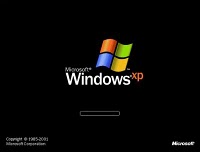 Now you can enable or disable XP boot logo at startup of your PC by just following these steps:
1-Go to Start / Run Type msconfig to open system configuration utility
2-Click on Boot.ini tab
3-Tick/Check the box for /NOGUIBOOT to disable XP boot logo
And To enable it uncheck that box.
Wednesday, August 17, 2011
Remove Not Listed Programs In Add/Remove
This problem can occur if the program you installed creates a registry key name that is longer than 60 characters in length. Add/Remove Programs only lists program names it locates up to the point it encounters this situation.Follow the steps given to solve the problem.
* Go to C:\Windows\Inf folder. In the right pane, scroll down to sysoc.inf. Open it with notepad. It will look like…
[Components]
NtComponents=ntoc.dll,NtOcSetupProc,,4
msmsgs=msgrocm.dll,OcEntry,msmsgs.inf,hide,7
* The word “HIDE” in an entry hides that application from your Add/Remove Programs dialog box. To add ms messenger to the Add/Remove menu, delete the word HIDE from its entry. Don’t delete the “,”(comma) after it.
* Save the file and restart your machine and now you can see that app listed in the add/remove programs list.
* Go to C:\Windows\Inf folder. In the right pane, scroll down to sysoc.inf. Open it with notepad. It will look like…
[Components]
NtComponents=ntoc.dll,NtOcSetupProc,,4
msmsgs=msgrocm.dll,OcEntry,msmsgs.inf,hide,7
* The word “HIDE” in an entry hides that application from your Add/Remove Programs dialog box. To add ms messenger to the Add/Remove menu, delete the word HIDE from its entry. Don’t delete the “,”(comma) after it.
* Save the file and restart your machine and now you can see that app listed in the add/remove programs list.
Subscribe to:
Posts (Atom)